

Oakley Meta Vanguard / HSTN
The New Oakley Performance Meta AI Glasses | Oakley® | AI Vitamin
- Oakley, Inc. / Luxottica (manufacturer of Oakley Meta Glasses)
- Ohio, United States
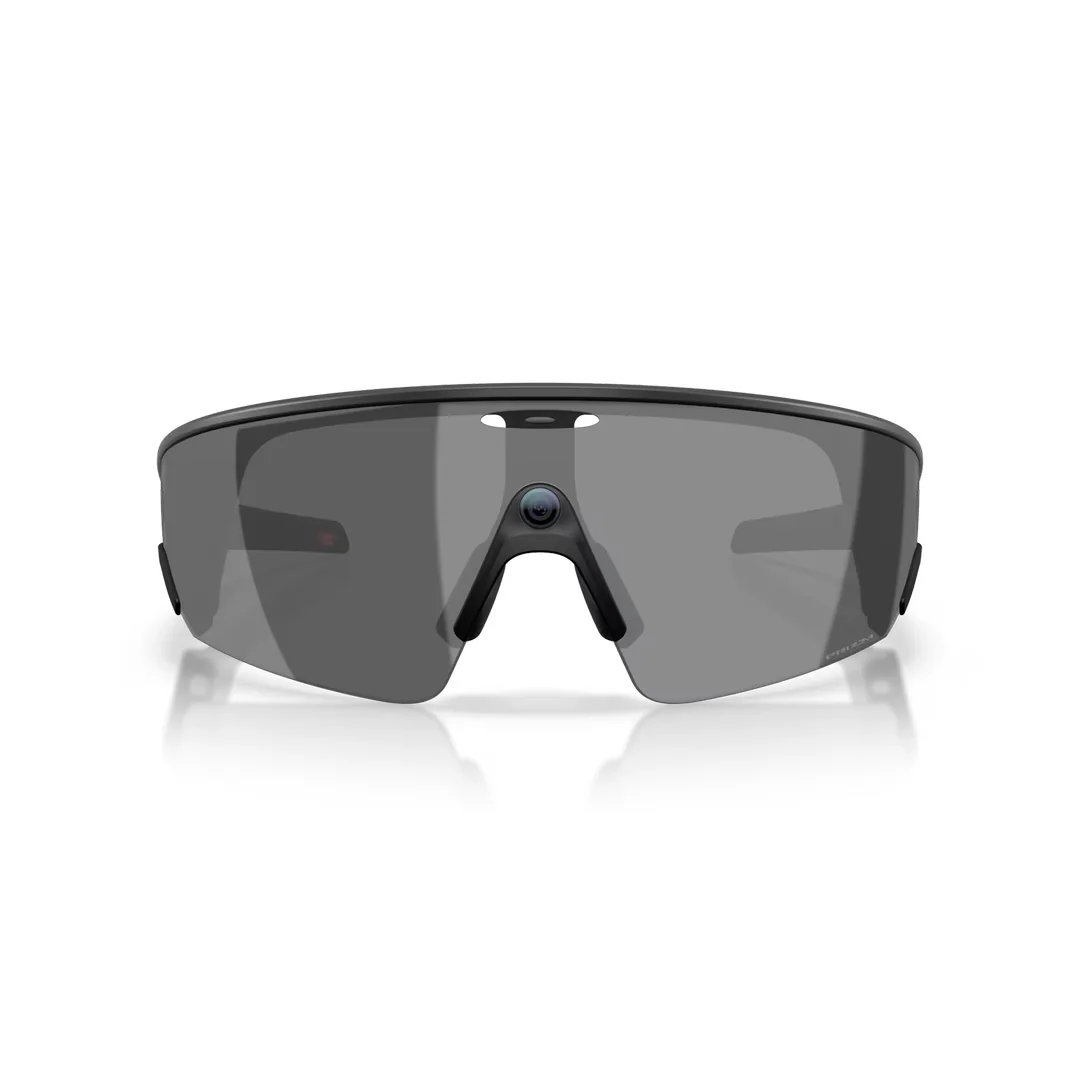
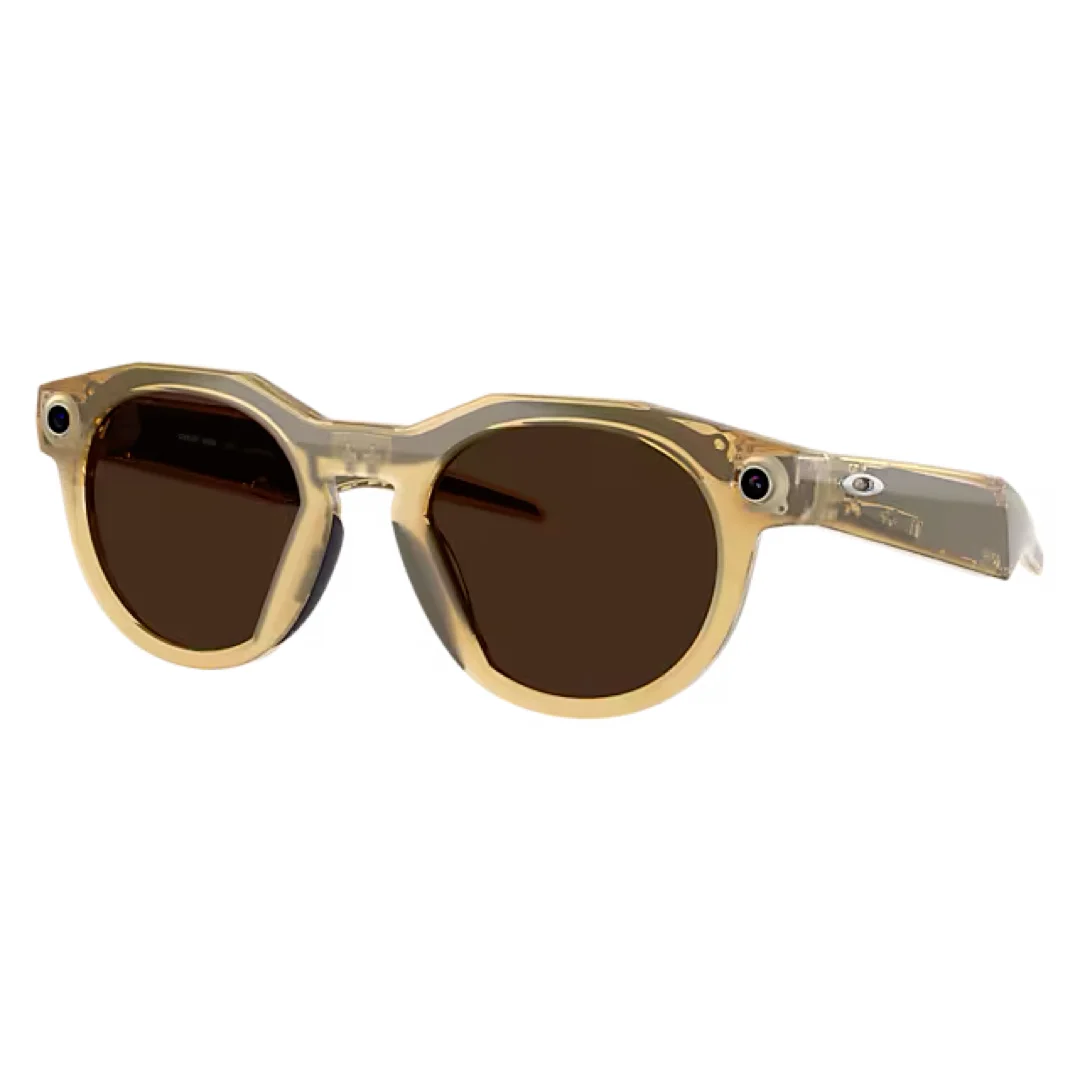
AI summary
Oakley Meta Vanguard and HSTN combine a 12MP POV camera, wind-resistant open-ear audio, Meta AI and the Meta AI app with Oakley Prizm/Transitions lenses; Vanguard adds IP67 sport durability and Garmin/Strava performance integrations.
Pricing
Hardware options
| Option | Price | Notes |
|---|---|---|
| Oakley Meta Vanguard — starting price | $499 | — |
| Oakley Meta HSTN — starting price | $399 | — |
Specifications
Key hardware details first, followed by the complete product specification.
Key specifications
- Camera
- Both have a 12MP camera. Vanguard uses a centered ultra-wide camera; 3024 × 4032 photos.
- Video capture
- Vanguard: 720p at 120 fps or 2203 × 2938 at 30 fps. HSTN: up to 2203 × 2938 at 30 fps. The Meta AI app can set 30-second, 60-second or 3-minute clips.
- External dependencies
- Vanguard integrates with compatible Garmin devices (sold separately) and Strava for workout data and session sharing.
- Connectivity
- Wi‑Fi 6E and Bluetooth 5.3.
AI & translation
- Translation languages
- English, French, Spanish and Italian for full voice commands; official site offers live translation features.
- Conversation modes
- Live translation, calls and messaging; control by voice, touchpad/capture button and Meta AI.
Capabilities & dependencies
- Core task internet requirement
- Wireless internet access is required; Meta AI and voice-command availability varies by country and language.
- Phone dependency
- A smartphone with the Meta AI app is required to operate the glasses.
- Languages and regional availability
- Full voice commands: English, French, Spanish and Italian. Meta AI app supported in US, Canada, Italy, UK, Ireland, Australia, Spain, Belgium, France, Austria, Germany, Sweden, Norway and Denmark.
Connection & companion
- Compatible platforms
- iOS 14.4+ or Android 10+; Android requires location services enabled.
- Account requirement
- A valid Meta account is required.
- Activation markets and conditions
- Oakley Meta glasses are sold on Oakley.com, at official Oakley stores and certified Oakley dealers; current local availability and shipping exclusions apply.
Design & carry
- Dimensions
- Vanguard: lens width 52 mm, bridge width 152 mm, temple length 120 mm; one size, wide universal fit. HSTN: lens width 51 mm, bridge width 22 mm, temple length 145 mm; one size, wide high-bridge fit.
- Materials
- Both models list O Matter™ frame material.
- Officially listed colours
- Vanguard: 7 current official US color/lens variants; HSTN: 8. Current official pages feature Black + Prizm Black (Vanguard) and Light Curry + Transitions Brown (HSTN).
- Ingress protection
- Vanguard: IP67 rated for sweat, dust and water resistance. No HSTN ingress rating was stated on the reviewed official pages.
Optics & frame
- Lens type
- Vanguard: Prizm™ / Prizm™ Transitions® lenses. HSTN: Prizm™, Prizm™ Polarized, Clear and Transitions® options.
- Prescription lens compatibility
- HSTN supports Oakley Authentic Prescription with eligible prescription range −6.00 to +4.00; Vanguard product page supports prescription but did not state a range in reviewed details.
- Frame sizes
- Both are one size; Vanguard is Wide/Universal Fit and HSTN is Wide/High Bridge Fit.
Power & charging
- Battery life
- Vanguard: up to 9 hours typical daily use or 6 hours continuous audio. HSTN: up to 8 hours typical use or 5 hours continuous audio/video calling.
- Charging method
- Both use an included charging case; USB-C wall adapter and cable are not included.
- Charging time
- Vanguard: full charge in 75 minutes. HSTN charging case: full charge in 3.5 hours via USB-C.
- Required accessories and consumables
- Vanguard: charging case, three-size Unobtanium nose pads, cleaning cloth and user guide. HSTN: charging case, cleaning cloth and user guide.
- Case battery
- Vanguard case adds up to 36 hours of charge; HSTN case adds up to 48 hours of charging on the go.
Privacy & data
- Sensors and data capture
- 12MP camera (Vanguard centered ultra-wide); five-microphone array; external Capture LED indicates photo/video capture or power-on.
- Data upload and processing
- Meta AI app is used to manage settings, import and share captures, and interact with Meta AI.
- Privacy controls
- Capture LED signals recording; if it is covered, the official FAQ advises clearing it.
What is included
- In the box
- See required accessories: Vanguard includes case, three-size nose pads, cleaning cloth and user guide; HSTN includes case, cleaning cloth and user guide. USB-C cable is not included.
FAQ
What is the capture LED?
The capture LED is an external facing LED that signals to others when you are taking a photo or video, or when your glasses are first turning on. If you have additional privacy or data questions, please visit the Meta AI Help Center.
How do I turn my glasses on and off?
OAKLEY META HSTN The power ON/OFF switch is located on the left inner arm of the glasses, near the hinge. To turn ON: Slide the power switch towards the lens; the notification LED starts blinking white. The white LED will blink while your glasses turn on. When it turns solid green, you are ready to continue. To turn OFF: Slide the power switch all the way to the left; the notification LED starts blinking red to signal that the glasses have turned off. OAKLEY META VANGUARD The power button is located on the underside of the left arm. To turn ON: Press and hold power button for 1 second. To turn OFF: Press and hold power button for 3 seconds.
How do I take a picture or video using Oakley Meta glasses?
There are two ways to take photos and videos with your Oakley Meta glasses: 1. One-touch control To take a photo, press the capture button once. The white notification LED will blink and make a sound during the capture. To record a video, press and hold the capture button to record a 30-second, 60-second or 3-minute video. Press again to stop recording. The white notification LED will stay on while you are recording. The default video length is 30 seconds, but it can be extended to 3 minutes in Meta AI app settings. 2. Hands-free voice command When Voice is wake word-enabled, use your voice to take a photo or video: “Hey Meta, take a photo” or “Hey Meta, take a video.” When you take a photo or video, the capture LED will activate to indicate to those around you that you may be recording. To learn more, watch the Product Tour via the Meta AI app within Settings.
How do I pair my glasses with the Meta AI app?
To pair your glasses, open the Meta AI app and make sure you are logged in to your Meta account. If you already have glasses paired to the Meta AI app, go to Settings and tap the “Add Device” button on the top right. Then: 1. Select either Oakley Stories or Oakley Meta and proceed until you reach the Bluetooth pairing stage (Bluetooth permissions must be granted). 2. Make sure your glasses are turned on and placed in the case. 3. Press and hold the pairing button on the back of the case for 5 or more seconds. Release when the case LED pulses a blue light. 4. Your glasses should automatically appear in the app when they are ready to pair.
How long does the battery last? / How often will I need recharge?
Your Oakley Meta glasses and charging case have a different charge lifecycle: Charging Case A fully charged case provides 5 additional frame charges. You can fully charge the case to 100% in 3.5 hours. Glasses Battery With a full charge of the glasses you can do many things: - Listen to music for 5 hours - Capture and transfer about 1200 photos - Make video calls for about an hour and a half This may vary with use and other factors.
What do I need to use Oakley Meta glasses?
To operate Oakley Meta glasses you need to connect your glasses with a smart phone and the Meta AI app. Here is the complete checklist: - Smart phone with a recently released operating system: Android 10 and above (with location services enabled) or iOS 14.4 and above. See the complete list of supported phones. - Wireless internet access - USB-C charging plug (if charging from a power outlet and not directly from a USB point) - A valid Meta account - Meta AI app (downloadable from your App Store or by scanning the official QR code)
How do I set up my Oakley Meta glasses?
WHEN YOU FIRST UNBOX YOUR OAKLEY GLASSES: 1. Remove the plastic tab between the case and the glasses. 2. Make sure your glasses are redocked inside the case. 3. Wait until the LED light starts flashing blue. 4. Your device is now ready to pair. MANUALLY: 1. Place your glasses inside the case. 2. Press and hold the button on the back of the case for at least 5 seconds. 3. Wait until the LED light starts flashing blue. 4. Your device is now ready to pair. PAIRING YOUR GLASSES WITH YOUR PHONE: 1. Download the Meta AI app from your app store and log in using your Meta account. 2. Turn on the Bluetooth setting on your phone. 3. Turn on your glasses. Slide and hold the power switch towards the lens until the notification LED starts blinking white, then release it. When the notification LED turns solid green, you are ready to continue. If needed, fully charge glasses in their case before pairing. 4. Put your glasses into Bluetooth pairing mode. Fold both arms and hold the capture button on top of the frames for 12 seconds until the LED inside the frames starts blinking blue. 5. Continue following the instructions in the Meta AI app to finish setup. 6. Enjoy exploring your world with the Oakley Meta glasses collection. For illustrated setup instructions, refer to the Meta AI app.
Compare similar devices
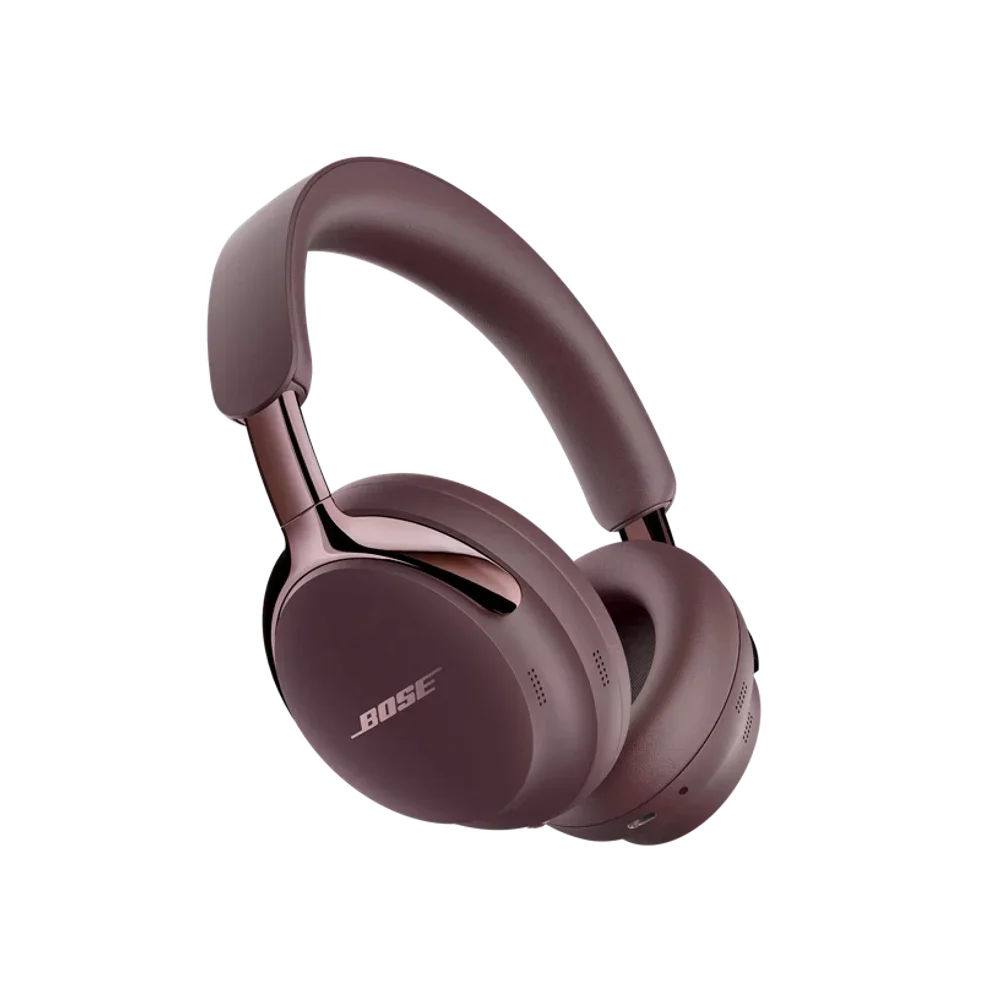
Bose QuietComfort Ultra Headphones (2nd Gen)
Shop Bose QuietComfort Ultra Headphones (2nd Gen) | Bose | AI Vitamin
View device
Timekettle New T1
NEW T1 Handheld Translator Device – Timekettle | AI Vitamin
View device
Timekettle WT2 Edge
W4 vs WT2 Edge/W3 Translation Earbuds: A Comprehensive Comparison – Timekettle | AI Vitamin
View device