

Anker soundcore Work
soundcore Work AI Voice Recorder—Crystal-Clear Audio, Anytime | AI Vitamin
- Anker Technology (SG) Pte., Ltd. (Anker Group / soundcore)
- Singapore, Singapore
AI summary
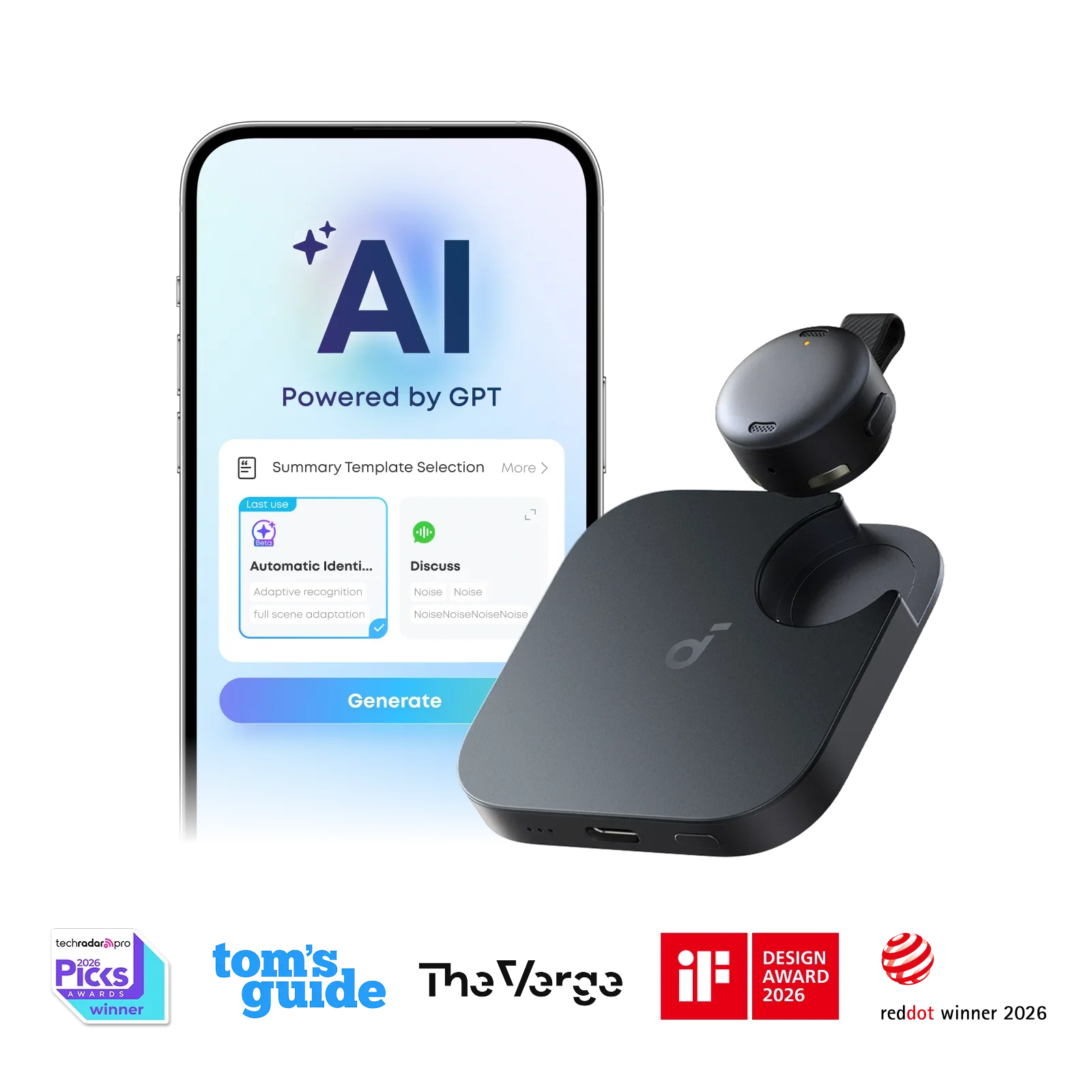
A $159 coin-sized wearable AI voice recorder with one-press capture, 150+ language transcription, speaker identification, Ask AI and structured summaries, encrypted local storage, 8-hour recorder / 32-hour case battery, and optional transcription plans.
Pricing
Hardware options
| Option | Price | Notes |
|---|---|---|
| Midnight Black / 8 GB | $159.00 USD | Official current price. |
| Pearl White / 64 GB | $169.99 USD | Official current price. |
| Pearl White / 8 GB | $159.00 USD | Official current price. |
| Midnight Black / 64 GB | $169.99 USD | Official current price. |
AI membership
| Option | Price | Notes |
|---|---|---|
| Starter | Free | 300 free transcription minutes/month included. |
| Pro | $15.99/month or $99.99/year | Optional transcription plan; 1,200 minutes/month. |
| Unlimited | $239.99/year | Unlimited transcription; optional plan. |
Specifications
Key hardware details first, followed by the complete product specification.
Key specifications
- Core task delivery status
- One-press recording, AI transcription, speaker identification, structured summaries, Ask AI, templates, mobile app and Online Hub.
- Connectivity
- Bluetooth 5.4; Bluetooth range 5 m; Wi-Fi Fast Transfer available when recorder battery is at least 30%.
- Dimensions
- 60 × 60 × 14.95 mm.
- Weight
- 48 g (1.693 oz).
Capabilities & dependencies
- Core task internet requirement
- Can record locally when unpaired; internet/cloud is needed for transcription, sync, Ask AI and web-portal functions.
- Phone dependency
- Initial setup requires the soundcore app and a soundcore account. iOS auto-launches the app for live recording; Android needs the app/background permissions enabled.
- Languages and regional availability
- Supports 150+ languages, including English, Spanish, French, Chinese and Japanese.
- External dependencies
- Anker soundcore app / account; optional cloud sync for Online Hub; Apple Find My (iPhone only).
Connection & companion
- Compatible platforms
- iPhone (not iPhone 7 or earlier) and Android; mobile app does not support computers. Online Hub provides browser access only when cloud sync is enabled.
- Account requirement
- Log in to a soundcore account and pair in the app; press the charging dock button within 60 seconds to confirm initial pairing.
Design & carry
- Officially listed colours
- Midnight Black or Pearl White.
- Ingress protection
- IPX4 for both recorder and charging case; avoid direct water exposure or frequent rain use.
Power & charging
- Battery life
- Up to 8 hours continuous offline recording per recorder charge; up to 32 hours total with the charging case.
- Charging method
- USB-C charging; included USB-C cable.
- Charging time
- Recorder: about 1 hour; charging case: about 1.5 hours. Fast charge: 10 minutes = 2 hours of recording.
Power & storage
- Local storage
- 8 GB or 64 GB variants.
Privacy & data
- Sensors and data capture
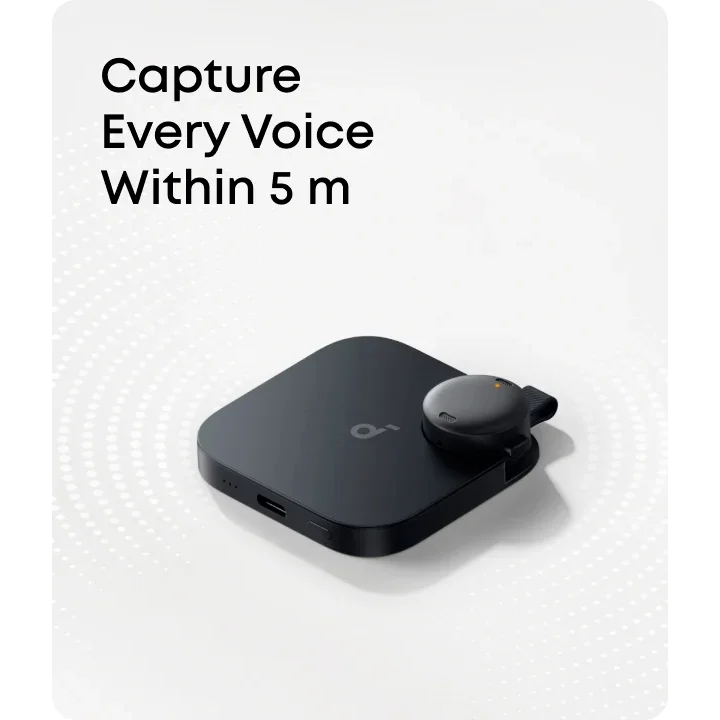
- Dual microphones capture voices within 5 m. The product records audio and can analyze voice characteristics for speaker identification.
- Data upload and processing
- Recordings and transcription content are AES-256 encrypted locally; selected transcription requests upload audio temporarily to the cloud.
- Data retention
- Cloud transcription data is promptly deleted after delivery; unretrieved encrypted files can remain for up to 7 days. App Trash retains files 30 days; migration uploads delete after 24 hours.
- Training-use policy
- Official FAQ: data will not be backed up or used for training without permission.
- Privacy controls
- AES-256 at rest, TLS 1.3/ECDH with AES-256 in transfer; device does not export recordings via USB. SOC 2 Type I app audit; NIST IR 8425 and EN 18031 listed.
- Export and deletion
- Audio cannot be exported via USB. App-side deletion is recoverable from Trash for 30 days; logging out deletes account recordings permanently.
Recording
- Microphones
- Dual microphones.
- Recording modes
- Physical self-locking record button; double-tap top to highlight important content and receive vibration confirmation.
- Pick-up range
- 5 m / 16.4 ft pickup range.
- Continuous recording
- Record offline and automatically sync when app reconnects; 8 h stated continuous recording, including while in charging case.
Transcription & export
- Included transcription quota
- Starter tier is included indefinitely after device binding and provides 300 transcription minutes/month; no rollover.
- Speaker identification
- Speaker identification; official page states up to 97% accuracy.
- Real-time transcription
- On iPhone, app auto-launches and provides real-time recording/transmission; Android users must manually open the app.
- Export formats
- Audio and transcripts can be reviewed/played in mobile app; site says audio export via USB is not supported; Online Hub supports reading/editing text and playing cloud-synced audio.
What is included
- In the box
- soundcore Work, USB-C cable, necklace chain, and magnetic ring.
FAQ
Where will my data be processed?
By default, recordings and transcription content are stored locally on your device. Your audio will only be temporarily uploaded to the cloud when you choose to transcribe it. Once transcription is complete, your audio and transcription data will be promptly deleted from the cloud. Note: To ensure you don't lose your transcription credits, any unretrieved files (e.g., audio and transcription data) are temporarily stored for up to 7 days. We recommend keeping the app open to receive your files right away.
Will my data be backed up or used for training?
No. Your data will only be uploaded to the cloud if you choose to transcribe or migrate it to the cloud. Once transcription is complete, your data (including audio and transcription content) will be deleted from the cloud. We will not back up or use your data for training without your permission.
Is there any danger of a data breach during data transfers?
Data is encrypted both during transfer (such as TLS 1.3 and ECDH with AES-256) and at rest (with AES-256) to provide secure protection. Your data is securely encrypted both during storage and transmission to ensure its safety.
If I lose my soundcore Work, will my stored data be stolen?
Worried about data leaks if you lose your device? Don't worry, soundcore Work comes with strong security measures. - Can others access my recordings? No. All recordings are transferred to the official app linked to your personal account and are therefore not accessible without your login details. - Can others forcibly reset the device and delete recordings? No. Once linked to the app, soundcore Work cannot be reset and stored data cannot be deleted solely using the device. - Can others copy my recordings via a data cable? No. The device does not support the exporting of recordings through a data cable, and all locally stored data is encrypted with AES-256.
What should I do if I lose my soundcore Work?
soundcore Work supports the Apple Find My feature. If you are an iOS user, follow the instructions in the app to pair with Find My, and then locate your device through the Find My app.
Is soundcore Work waterproof?
Both the charging case and the recorder have an IPX4 waterproof rating. Please avoid placing the product directly into water or using it often in rainy conditions.
What is the pickup range of soundcore Work?
soundcore Work has a pickup range of 16.4ft.
How should I wear or hold soundcore Work?
soundcore Work offers three usage modes to easily meet the needs of different scenarios. Gently lift the recorder by holding the connection strap, then pinch the recorder and gently twist it to easily separate the main unit from the magnetic disc. 1. Lapel Clip Mode: wear the recorder on your collar or the edge of your clothing, with the microphone hole facing outward. 2. Pendant Mode: when wearing thick clothing, hang the recorder on a necklace and adjust the chain length. An adjustable necklace cord is included. 3. Magnetic Attachment Method: place the recorder in the charging case and attach it to the back of your phone. For Android phones, attach the included magnetic ring first.
What should I do if soundcore Work falls off easily while I'm wearing it?
Thick clothing can affect how effectively the lapel clip holds. It is recommended to wear it using a lanyard.
How do I turn on soundcore Work?
After receiving the device for the first time, remove the protective film from the recorder and place it back in the charging dock. The LED on the left side of the charging dock will light up to indicate that the device is turned on. During continuous use, the recorder and charging dock will remain turned on.
How do I put the soundcore Work recorder into Sleep Mode?
1. By default, soundcore Work will enter Sleep Mode after being idle for 24 hours. When in sleep mode, the product will automatically turn on when it senses vibration. 2. You can go to the soundcore app > Device Info > Sleep Settings to set the sleep mode to 8/24/48 hours.
How do I connect the soundcore Work recorder to the soundcore app?
1. Remove the protective film and place the recorder in the charging case; the left LED indicates power. 2. Download the latest soundcore app and log in to your soundcore account. 3. Search for and select soundcore Work in the app. When its lights flash, press the charging dock button within 60 seconds to confirm pairing. After successful pairing, its lights become steady then turn off after 3 seconds. Note: the soundcore app currently does not support computers.
How can I link my soundcore Work to another account?
1. Go to Device Info in the old account, choose Linked Account, then Unlink. 2. Reconnect the recorder on the new account. If you lose an account password, use Forgot Password. If the email address is deactivated and you cannot log in, contact soundcore Support.
How can I connect a new mobile phone using the same login account?
Please log in to your original account on your new phone, then reconnect the recorder.
What should I do if soundcore Work cannot connect to the soundcore app?
1. Open the soundcore app and tap Add Device; it will automatically detect the recorder. 2. The app can connect to only one device at a time; disconnect any other device. 3. If needed, choose Set up Manually > Other Series > soundcore Work. 4. Install the latest app from the App Store, check battery level, and if this is not the first connection, unbind the old account first. Note: the soundcore app currently does not support computers.
Can soundcore Work record normally when not connected to the soundcore app?
Yes. When not connected to the soundcore app, recording data is stored in the recorder. Once connected to the app, recordings automatically sync to your phone.
How long does it take to fully charge soundcore Work?
Recorder: 1 hour Charging case: 1.5 hours
Why do the recorder and charging case consume power even when they are not recording or transferring data?
1. In a dynamic environment, the G-sensor remains activated, keeping the device powered on and consuming battery. Even powered on but not recording or transmitting, soundcore Work can maintain battery life for 10 days. 2. To reduce idle use, keep the recorder stationary long enough for Sleep Mode (default 24 hours; app settings: 8, 24, or 48 hours). 3. When the recorder drops to 80%, the charging case charges it to 100%, so the case also consumes power.
What is the battery life of the soundcore Work recorder and charging case?
1. Recorder battery life in recording and transmission mode: 6 hours. 2. Recorder battery life in offline mode: 8 hours. 3. Recorder battery life in Wi-Fi transmission mode at 1.5 m/s: 1 hour. 4. The charging case can charge the recorder 3 additional times.
What is the battery life of the soundcore Work recorder and charging case?
It's normal to experience a short delay with Bluetooth earbuds due to Bluetooth technology limitations. Forget the earbuds in Bluetooth settings, restart your Bluetooth device, fully charge and reset the earbuds, test another device or app, and, if required, use Gaming Mode. Ensure the Bluetooth device and earbuds are in range and free from signal interference.
How do I charge the soundcore Work recorder?
Please place the recorder back into the charging dock, and the charging dock will automatically begin charging the recorder.
How can I check the battery level of the soundcore Work recorder?
Every time you remove or replace the recorder, its indicator lights for 5 seconds. White for 5 seconds means 20%–100% battery and 1.5–8 hours recording time. Red for 5 seconds means 0%–20% battery and less than 1.5 hours recording time.
How do I charge the soundcore Work charging case?
Simply connect the charging case to a power source using the USB-C cable included in the package to charge it normally.
How do I check the battery level of the soundcore Work charging case?
Every time you remove or return the recorder, or briefly press the charging dock button, its three front indicators show charge for 5 seconds: all three = 60%–100%; first two = 20%–60%; first one = 0%–20%; below 10% the first one flashes.
My soundcore Work recorder cannot charge in the charging case or turn on when removed. What should I do?
1. Ensure the recorder is seated in the charging case; a flashing white case LED confirms the connection. 2. Clean charging contacts in the case and recorder with a dry cloth or a cotton swab lightly dipped in alcohol. 3. Try another cable and wall charger, and make sure the case has power. If unused for an extended time, charge for at least 2 hours before use.
How do I enable Wi-Fi Fast transfer on soundcore Work?
Please click the "WiFi Fast Transfer" button on the transfer interface of the soundcore app.
Why can't I use the Wi-Fi transfer function on my soundcore Work?
Please check if the recorder's battery level is below 30%. To prevent data loss during transmission, Wi-Fi transmission cannot be used when the battery level is below 30%. Please charge the recorder in a timely manner.
Why does my soundcore Work get hot when transferring via Wi-Fi?
This is normal; the product consumes more power during Wi-Fi transmission, and the device temperature may rise slightly in high-power consumption scenarios. However, this does not affect use or safety.
How do I use the recording feature on soundcore Work?
1. soundcore Work uses a self-locking physical button to start or stop recording. 2. Press the button to activate it; the orange indicator light turns on, indicating recording has begun. 3. Press the button again until it springs back up; the orange light turns off, indicating recording has ended. 4. The open charging case design lets you perform these operations even when the recorder is inside the case.
How do I use the double-tap feature on soundcore Work?
During audio recording, quickly double-click the top of the recorder to mark important content. The recorder vibrates slightly and the yellow light flashes once to confirm the mark.
Compare similar devices
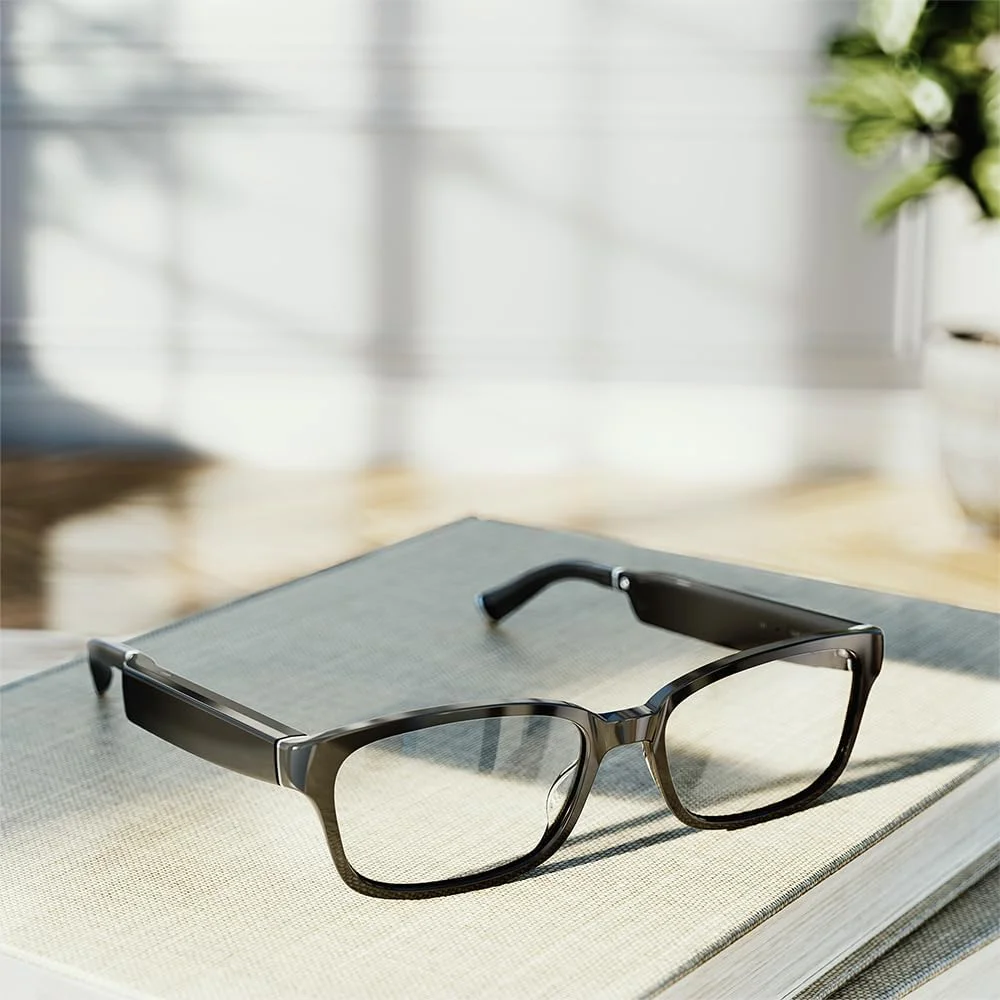
Amazon Echo Frames (3rd Gen)
Amazon.com: Amazon Echo Frames, an Alexa device (newest model), Smart glasses with Alexa, Rectangle frames in Classic Black with prescription ready lenses | AI Vitamin
View device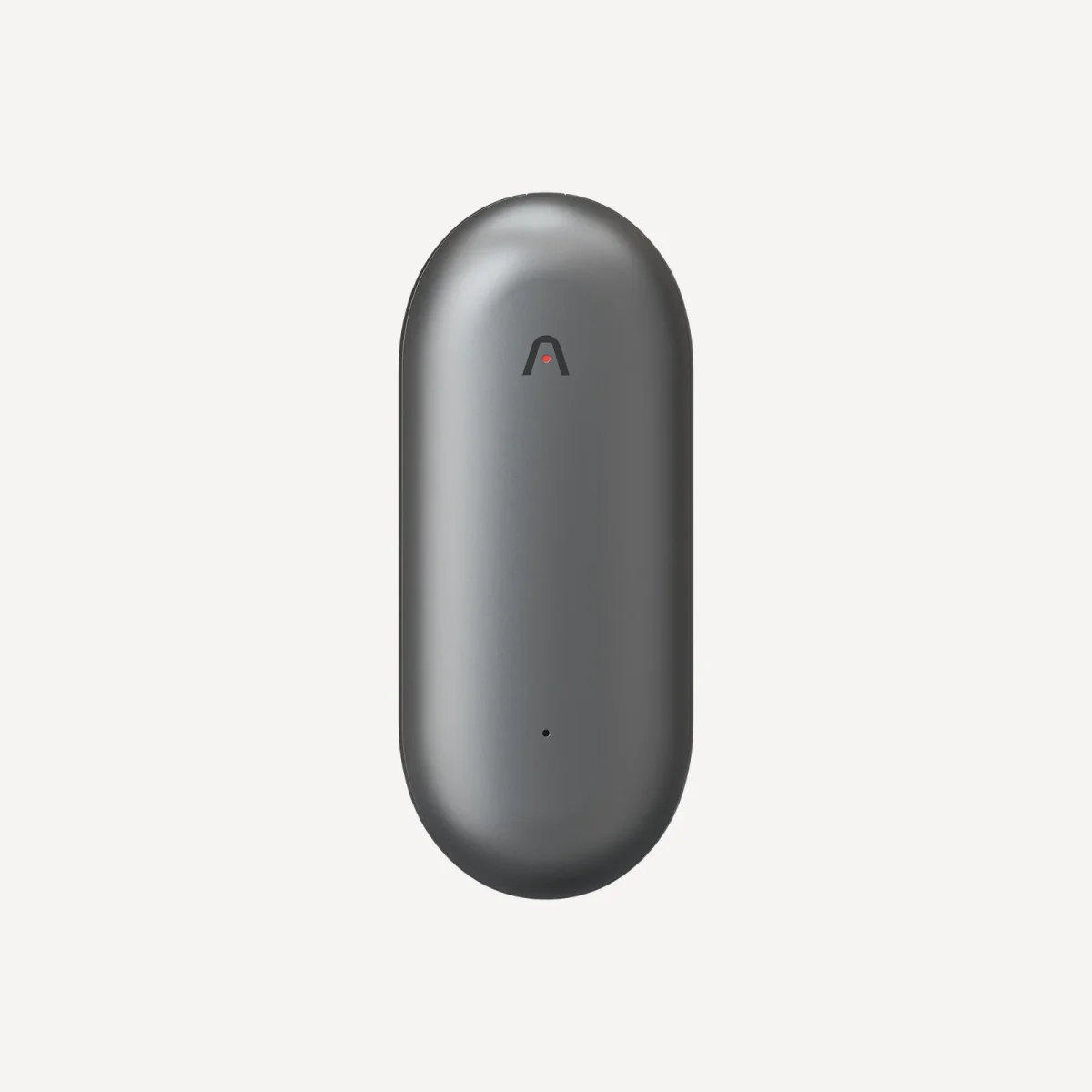
Plaud NotePin
Plaud NotePin: Your Wearable AI Note Taker & Memory Capsule | AI Vitamin
View device
Even R1
Even R1 Smart Ring: Control Glasses + Track Health | AI Vitamin
View device